Why Doesn't the USB Port in Your Car Transfer Data?
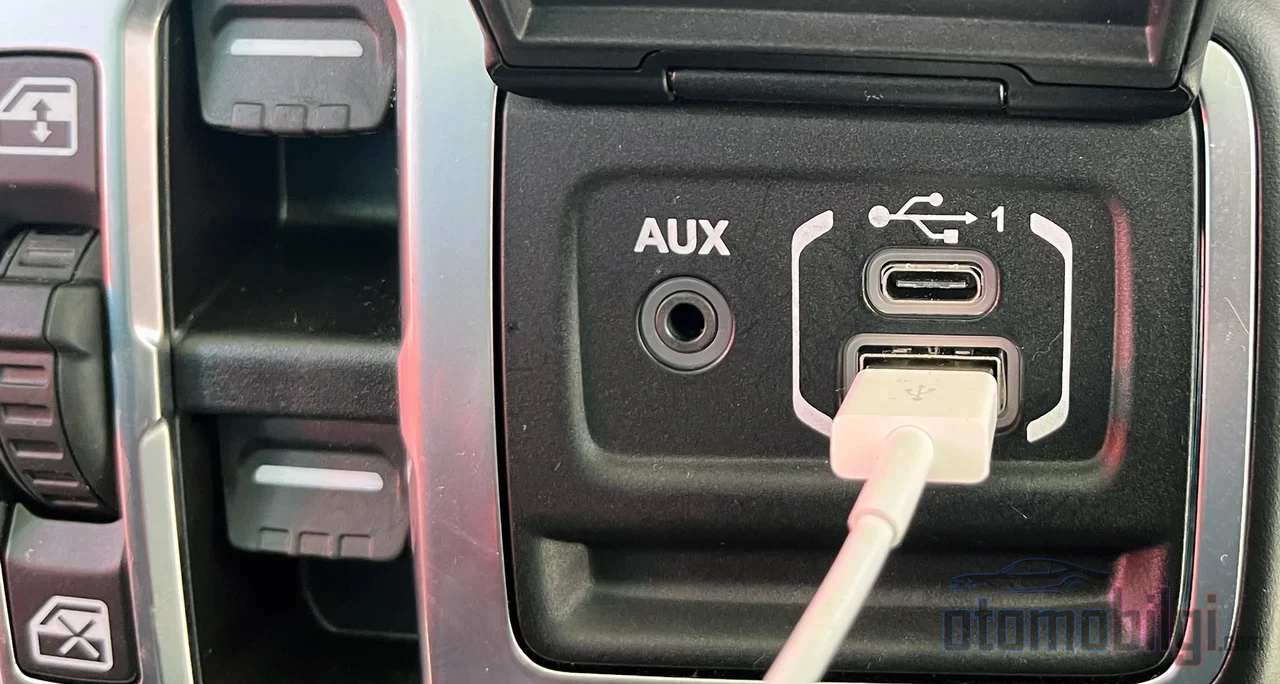
Does this scene sound familiar? You get in the car in the morning, plug your phone into the USB port, the screen comes alive - everything is fine. The next day you plug the same phone into another port on the center console and... nothing happens. The phone heats up, the charging indicator spins, but CarPlay or Android Auto just won't open. Are you thinking it's a fault, a software issue, or that your car is mocking you? It's neither. The answer is actually much simpler and just as frustrating: not every USB port may carry data. So why do two ports that look the same behave so differently from each other? Let's dig in.
There Are Four Wires Inside the Cable - That's Where the Secret Lies
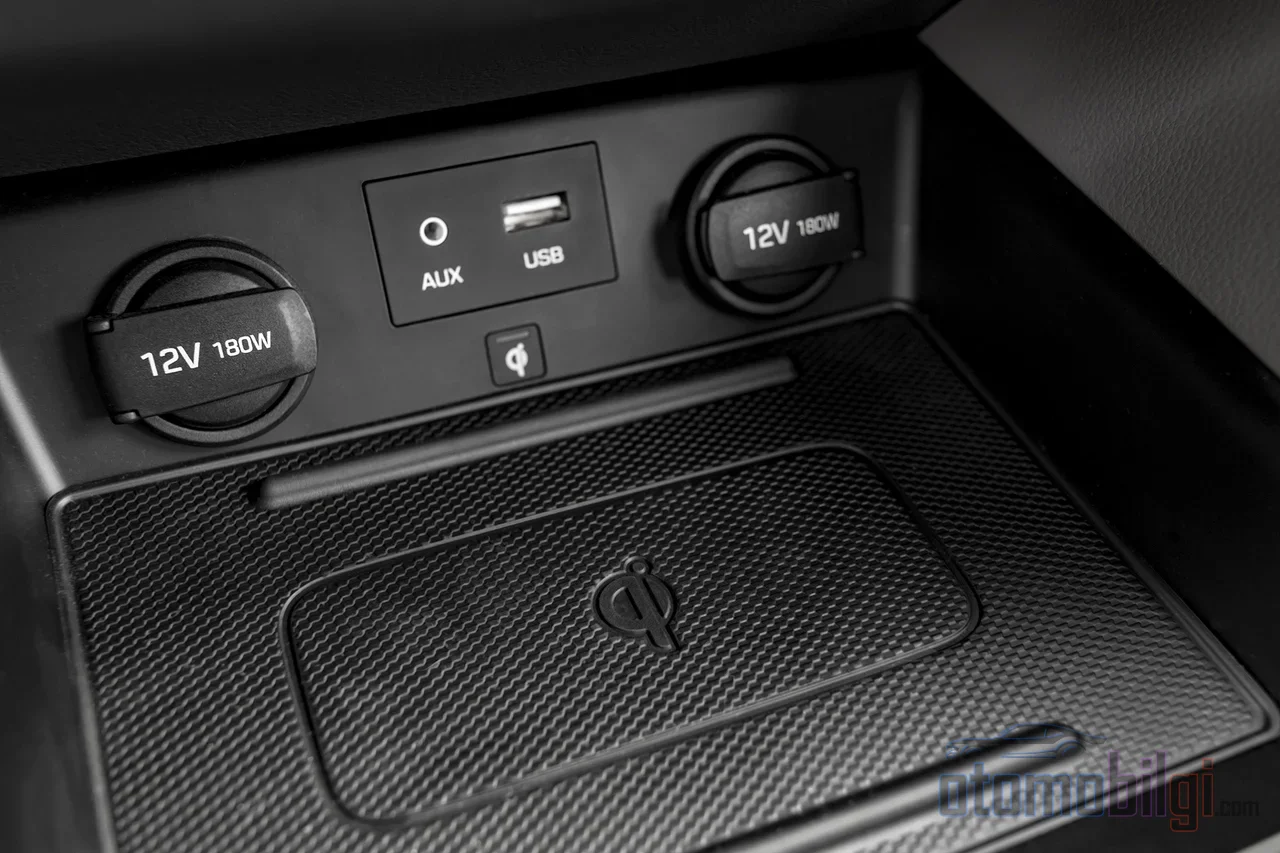
Let's start from the most basic level. A USB cable that can transfer data typically contains four wires: positive, negative, a data transmit line (D+) and a data receive line (D−). The positive and negative wires carry power, so they're the part that charges your phone. The D+ and D− lines, on the other hand, enable data exchange between the phone and the head unit. Think of it as a road: two lanes for power, two lanes for data. For your map, music, and messages to reach the screen from your phone, the data lanes must be open.
Now let's move on to the hero-villain of this story: charge-only cables. These cables don't have those data lines at all - there are just two wires, or the minimum structure needed for power, and that's it. The result? The phone charges, warms up, is happy; but it is never detected by the computer or the car. Many people in this situation check the cable for seconds without any suspicion, because it looks exactly identical from the outside. That's just how fairness works.
USB-C Looks the Same But Not Every Port Has the Same Function
The biggest confusion USB-C has brought is this: the connector has a single shape, but the ports' functions can be very different from each other. In other words, that symmetrical plug you can flip either way says nothing about what the port does. Manufacturers can assign different roles to the ports according to their own design:
- PD (Power Delivery) port: Its name usually carries a power label like PD, Power Delivery, or 100W. Its whole point is power input and charging pass-through; it often doesn't do data transfer.
- Data port: Marked with speed labels like USB-C Data, 5Gbps, or 10Gbps. File transfer and accessory connection are these ports' job.
- Full-function port: Labeled USB4 or Thunderbolt, these ports offer charging + data, and sometimes video output too.
As for the PD side, here's the situation: Power Delivery is a USB charging technology based on the official USB-IF specification, and it allows power levels to be negotiated between devices. So its main subject is power transfer - the data side is not the focus of the specification. That's why it's normal for nothing to happen when you plug a USB stick into a PD port; that port isn't designed to care about your files. As for the ports in the car: the same logic applies. Some vehicles have a dedicated USB port labeled with the CarPlay logo, and you need to plug the phone into exactly that port; the other ports usually work for charging only. Honda's official connectivity guide says exactly this: connect the phone to the port labeled CarPlay. It's a similar story on Toyota's side - wired CarPlay connects via the USB port, and then you follow the Settings → General → CarPlay menu on the vehicle's screen. So if your car has two or three ports, not all of them may lead to the same place.
Highlights
- Data cables contain four wires: two for power, and the D+ and D− lines for data
- Charge-only cables have no data lines at all; they are indistinguishable from the outside
- Google's Android Auto recommendation: use a cable under 1.8 meters (about 6 feet) and avoid extension cables
- USB-C is only a connector shape; the port's function depends on the manufacturer's design
- For a wired connection, the phone must be plugged into the port in the vehicle labeled CarPlay/Android Auto
Why Do CarPlay and Android Auto Want a Specific Port?
Now let's bring the third player to the table: the protocol. CarPlay and Android Auto are software layers that carry the phone's screen and apps to the head unit. For this connection to be established, the phone and the head unit must see each other, recognize each other, and start the protocol session. All of this runs over the data lines on the cable. If the port only provides power, no conversation starts between the phone and the head unit - because there are no lines to talk over. The result is the same in every scenario: the phone charges but the screen reflects nothing.
That's why what some drivers experience is usually not the fault of the cable or the port; one of the trio is missing. If all three of the port + cable + protocol trio are sound, the connection is established. If one is missing, even with the most expensive phone and the newest car, the screen stays blank. A practical tip also emerges for those using rental cars: try the front USB port closest to the screen; if there are two ports, try them one by one and wait 10-15 seconds for the prompt to appear on the screen. The port in the vehicle may be located on the console or the panel; sometimes it is overlooked at first glance.
Cable Selection and Long Cables: The Details That Kill the Connection
So far we've talked about the port side; now let's dig deep into the cable. Android Auto's official support documentation gives a very clear recommendation: use a cable of roughly under 1.8 meters (6 feet) and stay away from extension cables. Why? Because as the cable gets longer, the signal quality of the data lines drops and the connection approaches the breaking point. So for those who want to buy a long cable to reach passengers in the back, the picture is clear: that comfort may come at the cost of connection stability.
The second critical heading is quality. Troubleshooting guides repeatedly emphasize that a faulty or charge-only USB cable is one of the leading causes of Android Auto connection errors. A case described on Google support forums may sound very familiar: when the cable gets bumped during driving, Android Auto cuts out instantly, but other apps keep working without a problem. This is exactly a portrait of how a weak cable's data line reacts to physical movement. If the power line holds up, the phone keeps charging; but the data line jitters and the connection drops. The message on the CNET side is the same: don't cheap out on the cable. In forum and community experiences, brands like Anker, Baseus, and Belkin are frequently recommended for reliability; Anker's Powerline series is also a name often heard in this context. In 2026 recommendations, it is emphasized that cables supporting 240W provide faster charging in the car - meaning the right cable both carries data and speeds up charging.
How Do You Distinguish a Charging Cable from a Data Cable?
Here's the crucial question, because from the outside the two look identical. Data cables are usually slightly thicker since they contain four wires - but this is not always a reliable clue. The USB-IF has not mandated a visual label between the two types; so you need to look not at the packaging, but at whether it actually works. The most practical test is this: connect the device to a computer and try copying a file. If the copy starts, the cable has data lines. If there's no copying, that cable only gives you charging - which may be why the car declares you invisible too.
Strange Situations Encountered in Real Use
The theoretical side is fine; but real cases from the forums show how confusing this topic can be. For example, a Honda Civic owner reports that the phone charges but CarPlay isn't detected, sometimes it starts being recognized after 10 minutes, and then cuts out again. On Apple discussion platforms, there are cases where an iPhone working flawlessly over USB for months suddenly gives a no devices detection error - a picture that matches cable and port wear exactly. So the problem doesn't always appear from day one; it can also arrive over time, as the cable bends and the port gets handled.
In an owners' group for the Ford Shelby GT500, it's discussed how the USB port under the contactor sometimes charges and sometimes doesn't, and CarPlay mostly fails to work. The lesson here is interesting: the same port may not be able to do every job; some ports may not be designed for a quality data connection. Carpuride's troubleshooting summary gathers these kinds of cases under three headings: software bugs, cable problems, or issues on the vehicle side. As of 2026, there is one more interesting detail: some users report CarPlay failures even with Apple's official adapters and Lightning cables, and a data-capable direct USB-A → USB-C cable is suggested as the solution. So instead of relying on the brand, you need to look at whether the cable has data lines.
| Port Type | Typical Label | Charging | Data |
|---|---|---|---|
| PD (power) port | PD, Power Delivery, 100W | Yes | Usually no |
| Data port | USB-C Data, 5Gbps, 10Gbps | Variable | Yes |
| Fully functional port | USB4, Thunderbolt, Full-Function | Yes | Yes (sometimes video too) |
How Is USB-C Changing This Distinction?
USB-C is on its way to becoming the universal gateway for everything in the world. Two developments highlighted in Bel Fuse's technical review are shaping the entire USB-C ecosystem, including cars: voltage negotiation in USB-C PD and PPS, and the EU's common charger mandate. In other words, the connector is becoming standardized; but as you saw above, the functions of ports that look identical remain at the mercy of the manufacturer's design. Reading port labels should remain a habit in the USB-C era as well.
The wireless side, however, is changing the rules of the game. Wireless adapters like AAWireless TWO+ and the Teeran 2-in-1 partially overcome the port function problem by converting the wired CarPlay/Android Auto port to wireless; such products stand out in 2026 recommendation lists. A sensible way out for those who don't want to deal with cables: plug it into the right port once, and then the wired hassle is over. Still, since the adapter's own quality and up-to-date software come into play, keep in mind that wireless connectivity isn't equally stable in every vehicle.
What Should You Do Step by Step If CarPlay Won't Connect?
Here is the ultimate checklist. I've gathered the steps recommended by troubleshooting guides in a practical order:
- Check the port label in the car: plug the phone into the port labeled CarPlay/Android Auto.
- Try a known, reliable, data-capable cable; keep it under 1.8 meters in length and don't use an extension.
- Connect the phone to a computer and copy files to test that the cable has data lines.
- Keep the phone and vehicle software up to date; some issues are resolved with software updates.
- If there are two ports, try both and wait 10-15 seconds for the prompt on the screen.
- If the cable has been constantly plugged and unplugged, or has been in use for years, factor in wear.
In summary: Why Do Some USB Ports Only Charge?
The direct and clear answer is this: a USB port or cable providing charge only results from the absence of data lines (D+ and D−) on it. On the port side, USB-C is merely a connector shape; the manufacturer designs some ports as power-focused only, such as Power Delivery, and these ports usually don't transfer data. CarPlay and Android Auto, on the other hand, are protocol connections established over the data lines on the cable between the phone and the head unit. If the port provides power but has no data lines, or the cable lacks data lines, the protocol session never starts - the phone charges but nothing appears on the screen. That's why the solution is sought in a trio: the right port, a data-capable cable of reasonable length, and up-to-date software. The moment you nail these three, that frustrating blank screen problem will most likely become a thing of the past. Have you also experienced a situation where your phone charges but CarPlay won't open? At which stage was it resolved? I'm curious!
Sources
- How to tell a USB charge-only cable from a USB data cable - Konnected Support
- USB-C Hub PD Port Only Charging? Here's Why - Lention
- FAQ: Tips for choosing a compatible USB cable for Android Auto - Google Support
- Connect to Apple CarPlay & Android Auto - Airport Marina Honda
- How to Use Android Auto Wireless and Apple CarPlay - Victory Toyota Canton
- Phone Charging but CarPlay Not Working? - Carpuride
- Phone charging but CarPlay not detected - Reddit r/civic
- Understanding USB Type-C and Power Delivery - Bel Fuse
- Best USB-C cables for Android Auto in 2026 - Android Central
- The Right Cable for CarPlay: What Actually Works in 2026 - CarTech Studio