Why Does Wireless Android Auto Connect Late?
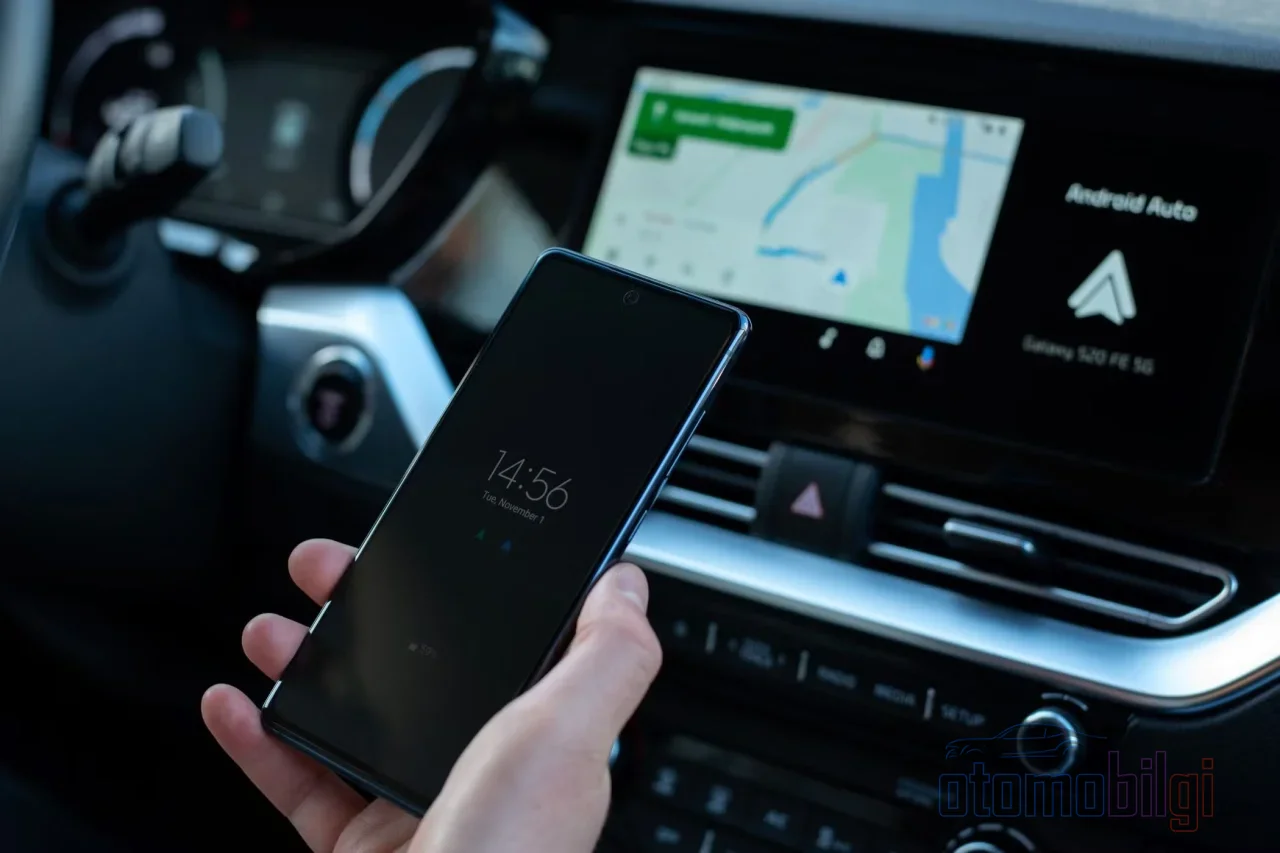
You get in the car in the morning, turn the ignition, and look at your phone's screen: The "Connecting…" message stretches on, like tea that refuses to steep. Five seconds, ten seconds, fifteen seconds… Meanwhile your friend's car opens wireless CarPlay almost instantly. Why? If the two don't do the same job, why do we expect the same speed? The question of why wireless Android Auto connects slowly actually opens the door to a far more interesting technical story than you'd think. Come on then, let's go behind the curtain.
Wireless Android Auto Actually Uses Two Connections
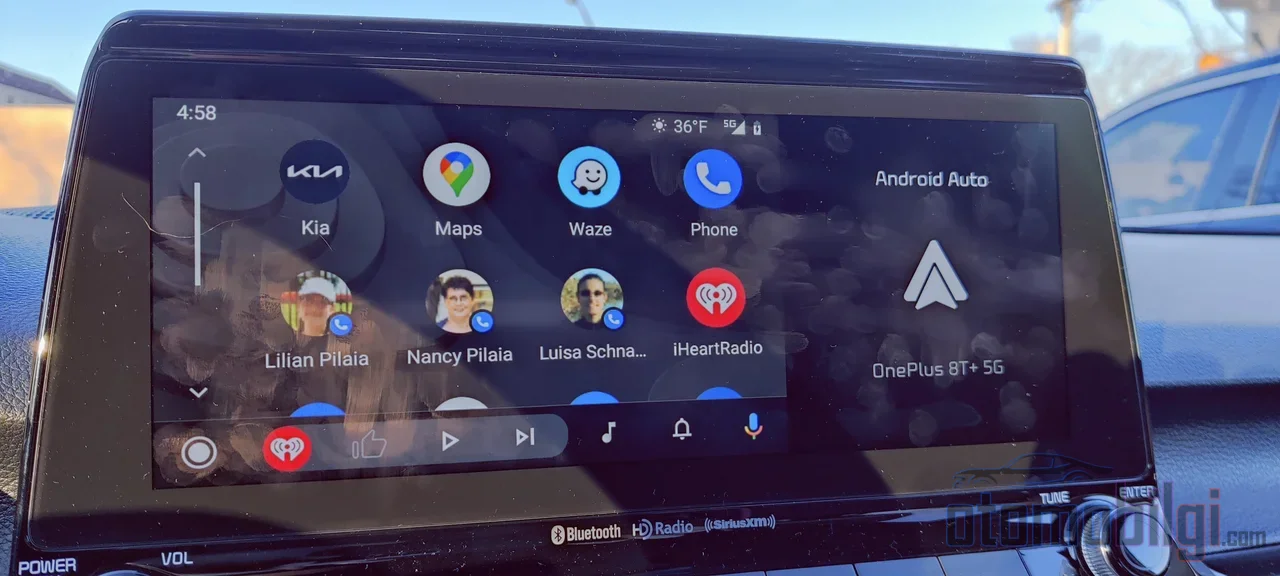
Most people think there is a single wireless connection between the phone and the car. The reality is much more colorful: wireless Android Auto uses both Bluetooth and Wi-Fi at the same time, and neither one is any use on its own. Think of it as a two-player team; one starts the game, the other plays the entire match.
Bluetooth has two jobs here. First, to perform the initial handshake between the phone and the car's head unit and to share identity credentials. The second is just as important as the first: routing voice calls over the Hands-Free Protocol. When you turn Bluetooth off completely, the connection drops entirely; there is no negotiating there.
But the real action is on the Wi-Fi side. Bluetooth is limited to a data rate of about 2-3 Mbps. Trying to carry a high-resolution map interface, streaming audio, and touch inputs over this narrow band is like replacing a highway with a bike path. Google's Android Auto developer documentation says this openly: Bluetooth bandwidth is insufficient for continuous video projection. That's why wireless Android Auto doesn't even appear on older phones that don't support 5 GHz Wi-Fi.
Highlights
- Wireless Android Auto uses both Bluetooth and 5 GHz Wi-Fi Direct; Bluetooth alone is not enough.
- The switch from Bluetooth to the Wi-Fi data channel typically takes 10-20 seconds.
- Daily wireless connection time is usually 15-30 seconds; a wired connection is ready in 5-10 seconds.
- Wireless CarPlay usually appears in 5-10 seconds; the difference is noticeable.
- Initial setup takes 3-5 minutes; afterwards the connection is established automatically.
How Is the Connection Established, Step by Step?
Now let's see, piece by piece, what happens inside those waiting seconds. The process goes through four stages, and each stage adds its own waiting time.
- Bluetooth discovery and handshake: When the phone approaches the car, it checks pairing information over Bluetooth. This stage is quick, but it opens the door to the other steps.
- Wi-Fi Direct handshake: Once the Bluetooth handshake is complete, the phone connects to the car's own peer-to-peer 5 GHz Wi-Fi Direct network. Did you notice the subtlety here? The car's head unit creates its own local access point like a home router, and the phone automatically joins it. No internet is needed at all; internet-requiring things like traffic info and flow services use your phone's mobile data.
- Profile negotiation: The two devices agree on which data will be transferred and what kind of connection will be established. Audio, GPS, odometer, touch inputs, voice commands... All of it goes through this local Wi-Fi connection.
- Interface transfer: The phone starts mirroring its screen to the vehicle. This is usually the stage you are waiting for most.
Switching from Bluetooth to the 5 GHz Wi-Fi data channel - that famous moment when you see "Connecting..." on the screen - typically takes 10-20 seconds. The time until the full Android Auto interface after ignition usually varies between 15-30 seconds in daily use. The duration can shorten or lengthen depending on the phone model and the head unit's processor speed. So it would be unfair to think that only Google is doing its job slowly; the hardware is also part of the scene.
Why Does CarPlay Seem Faster?
Here is the comparison you were curious about. While wired CarPlay appears in about 2 seconds, wireless CarPlay is usually ready in 5-10 seconds; with adapter-based wireless solutions, this can go up to 10-20 seconds. Wired Android Auto, on the other hand, takes 5-10 seconds for daily reconnections, and in wireless mode, as we said above, it holds at 15-30 seconds. The difference is clearly noticeable.
Now, let's be honest: both platforms use the same architecture; that is, both work with the Bluetooth handshake and 5 GHz Wi-Fi Direct duo. Yet despite the same foundation, it is a fact that Android Auto takes longer in practice. Unfortunately, there is no clear, straightforward technical explanation for why it is structurally slower; we only have duration comparisons at hand. This actually shows that the subject is still developing. So instead of getting angry, it is worth being patient while knowing how the system works.
Why Is the First Setup Long, and Why Does It Get Faster Afterwards?
The requirements for wireless Android Auto are clear: Android 11.0 or higher (the wireless option does not appear at all on Android 10), a phone supporting 5 GHz Wi-Fi, active Bluetooth, and a head unit that natively supports wireless connection. The first pairing is usually done with a USB cable and takes about 3-5 minutes. A small but important detail: in some vehicles, the head unit's Wi-Fi access point cannot fully start while the engine is off, so it is wise to try the first setup with the engine running.
But here is the good news: after the first pairing, everything changes. When the phone comes near and Bluetooth and Wi-Fi are on, the connection is established completely automatically. You do not need to unlock your phone or run an app. So that famous 3-5 minutes of hassle is done only once; afterwards it becomes an accustomed routine, like a familiar scent.
It is also worth knowing that head units usually store 5-10 Bluetooth/Android Auto pairings. If the list is full, new devices may not be able to connect. In vehicles that only support wired Android Auto, the situation is a bit different: Dongles like AAWireless, Carlinkit, or Motorola MA1 plug into the USB port, pair with the phone over Bluetooth, then switch to 5 GHz Wi-Fi Direct and convert the Wi-Fi stream into a USB signal. The car behaves as if it were connected by cable; but this practical solution naturally adds an extra connection delay.
What Are the Known Causes That Slow Down the Connection?
Now let's move on to the detective side of the matter. Why does the connection suddenly become extremely slow some days, or drop in the middle of a drive? Here are the most common culprits:
Silent Failure When the Phone's Wi-Fi Is Off
This is the most overlooked cause: The Bluetooth handshake may have been completed, but if the phone's Wi-Fi is off, the switch to the data channel fails silently. There is no error message, just endless waiting. Keeping both Bluetooth and Wi-Fi turned on together is therefore critical.
Wi-Fi Interference and Range Problems
Dropouts experienced while driving are almost always a Wi-Fi interference problem. The 5 GHz band has less interference but a shorter range. Shocking but true: even leaving the phone in a bag on the back seat can cause signal weakening. Also, the phone switching to a remembered 2.4 GHz network can cut off the direct 5 GHz connection. Metal-plate phone cases can also interfere with the Wi-Fi signal path in compact cabins. The "Adaptive Wi-Fi" power saving setting on some Samsung Galaxy phones can throttle Wi-Fi performance when the screen is off - exactly the moment when the Android Auto connection is ongoing; disabling this setting can solve the problem.
Outdated Software and Update Pains
An outdated Android Auto version or head unit firmware is one of the most common causes of connection failure. Old firmware may not recognize new handshake protocols. On the other hand, updates can occasionally cause problems too: After a beta update in June 2026, some users reported that the connection could not be established without restarting the phone, and after the March update, dropouts occurred on Pixel and Samsung phones. Such complaints are at the user experience level; they are thought to stem from changes in connection management on Google's side.
Practical Ways to Shorten Connection Time
Now we come to the most important part: what can you do to shorten this waiting time? Here are applicable moves that really work:
- Keep the Android Auto app, the phone's operating system, and the head unit's firmware up to date. Outdated software is the single most common cause of failure on the first attempt.
- Always keep both Bluetooth and Wi-Fi active on the phone; set Wi-Fi to "always on."
- Keep the phone at the front of the cabin; do not leave it on the back seat. Disable battery saver modes and Adaptive Wi-Fi.
- Settings > Apps > Android Auto > Follow the battery usage path and enable the "Allow background usage" option.
- There's also a hidden developer setting that can fix connection lag: if the wireless connection drains too much battery, you can try setting "Default USB configuration" to "File Transfer" in the developer settings.
- Clearing the pairing lists on both the head unit and the phone side and pairing from scratch can unstick stuck connections.
And let's be honest about the battery side: wireless Android Auto runs both Wi-Fi and Bluetooth, so it drains your phone's battery at a high rate and doesn't charge it on long trips. So if you want wireless convenience, keep a wireless charging pad or a spare cable with you. Remember, the car-phone connection is local and doesn't require internet; but map traffic or streaming services use your phone's mobile data.
| Connection Type | Daily Connection | Initial Setup |
|---|---|---|
| Wired Android Auto | 5-10 seconds | Instant |
| Wireless Android Auto | 15-30 seconds | 3-5 minutes |
| Wired CarPlay | About 2 seconds | Instant |
| Wireless CarPlay | 5-10 seconds | 10-20 seconds (with adapter) |
So Is Wireless Really Worth It?
Here's the final question and a clear answer: why does wireless Android Auto connect slowly? Because the system performs a two-stage choreography every time: first a Bluetooth handshake and authentication, then the establishment of the 5 GHz Wi-Fi Direct data channel and the streaming of the interface. Since Bluetooth alone is too slow to carry a high-resolution interface, this Wi-Fi transition is mandatory, and that "Connecting…" moment is exactly the duration of this transition: typically 15-30 seconds.
Wireless is great in terms of the convenience of getting in the car without searching for a cable; but in busy urban areas it's sensitive to Wi-Fi band congestion. A wired connection, on the other hand, is more universally compatible and slightly more fault-tolerant. So it's worth setting aside the notion that "wireless is always better." If you're in a rush over short distances, the cable is still the fastest way; on long, comfortable journeys, wireless freedom is worth that first half minute. Which one would you choose - speed or freedom?
Sources
- Why does wireless Android Auto use both Bluetooth and Wi-Fi? - Engadget
- Android Auto Wireless: How to Connect, Setup & Fix Issues - Merge Screens
- Android Auto Wireless Not Working? Fix It Fast - Merge Screens
- Wireless connection issues since beta updated 5th June 2026 - Google Support
- Android Auto runs faster and smoother now thanks to my 4 fixes - ZDNet
- This hidden Android Auto setting finally fixed my connection lag - Android Police
- I thought wireless Android Auto only ran off Bluetooth, but I was wrong - XDA Developers
- Wireless CarPlay vs Wired: Which Is Better in 2026? - Car and Driver Tech
- Wireless Android Auto slow to connect - RidgelineOwnersClub