Split-Screen Information for Apple CarPlay and Android Auto
On your morning commute, you want to see both the map and Spotify on the same screen, but your car only shows one app and leaves you to your own devices. Or quite the opposite: The screen splits itself in two one day, opens in full screen the next, and you stare at the buttons wondering why. This page exists precisely for that confusion: I will explain step by step how split screen works in CarPlay and Android Auto, which vehicles actually support it, and why this layout is more restricted on some screens.
Ready? Because there are actually two different worlds here: Apple's widget-supported split view called Dashboard, and Android Auto's multi-window layout, which it offers almost by default. Both do the same job, but in very different ways. And let me warn you from the very start: How good this experience will be depends more on your car than your phone. Now let's dive in.
How to Enable Split Screen in CarPlay?
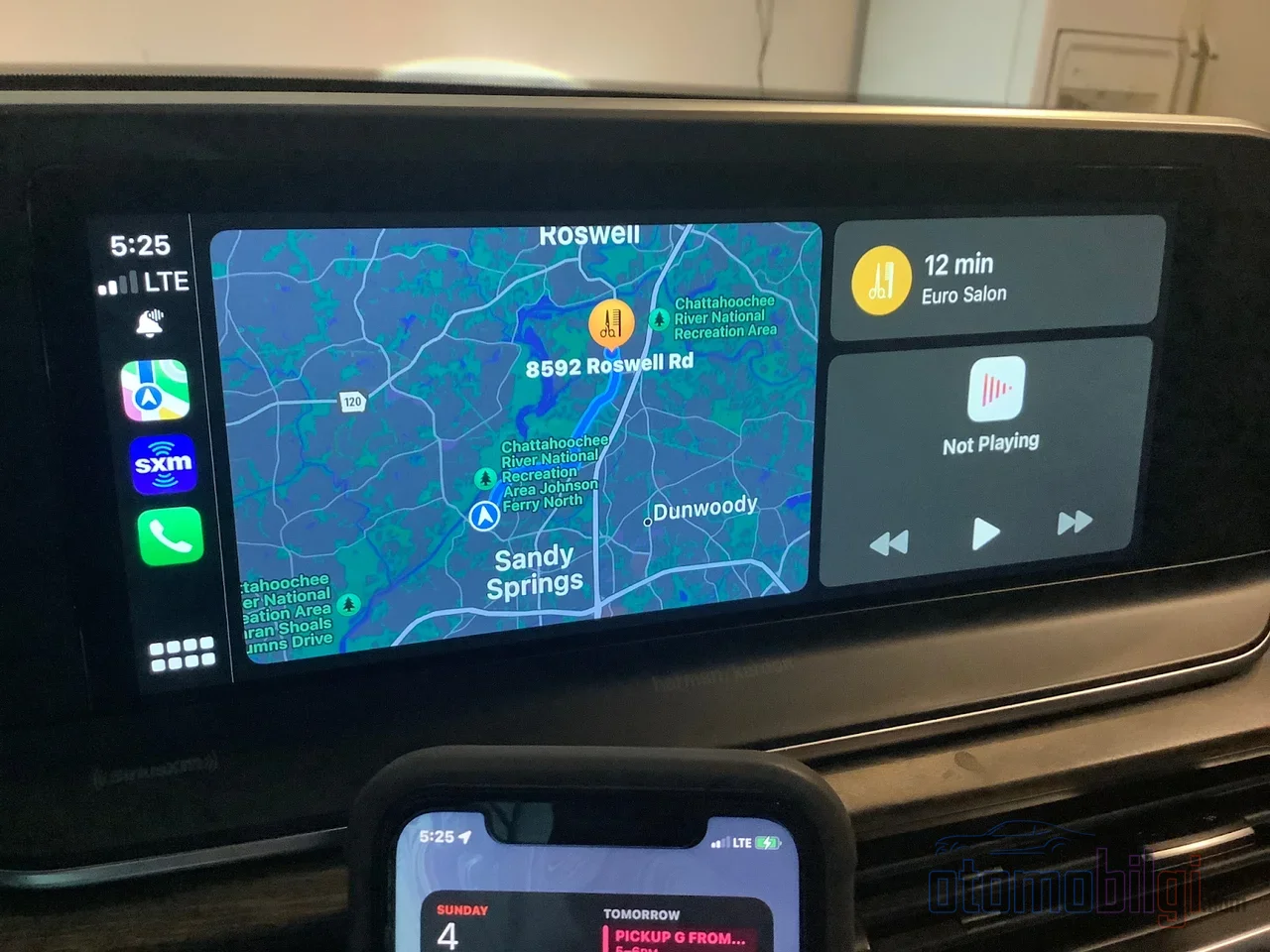
The official name of CarPlay's split screen view is Dashboard. In this mode, the screen is divided into two or three: Your active navigation app is automatically shown on the main map panel, with the music player and other widgets lined up next to it. So in theory, your WhatsApp message, your Spotify track, and your map are all at your fingertips at the same time. You don't even need to take the phone out of your pocket, all along the way.
So how do you open it? The fastest way is to tap the widget icon on the vehicle's screen - it's usually in the bottom left corner. If you can't see that icon, there's an alternative route: Tap the apps icon in the bottom left and select Dashboard from the list that appears. That's all it takes. The rest is up to your phone: On your iPhone, go to Settings > General > CarPlay > vehicle name > Widgets to add widgets, arrange widget stacks, and enable smart features like Smart Rotate and Widget Suggestions. The limit on how many widgets you can add is determined by your car's CarPlay screen - bigger screen, more widgets.
There's also the version issue, which is critical: The Dashboard view arrived with iOS 13, meaning you need an iPhone running iOS 13 or a newer version. Also, with iOS 13.4, third-party map apps were able to enter the split screen - yes, you can see Waze on the left side. Years later, iOS 26 took things one step further: You can now even design your own custom widgets with third-party apps. It's nice that the path for adding and rearranging widgets has stayed the same in recent versions: Settings > General > CarPlay > Widgets. An old shortcut that's still worth its weight in gold.
Highlights
- CarPlay's Dashboard view arrived with iOS 13; iOS 13.4 opened the split screen to third-party maps like Waze.
- More than 800 vehicle models are compatible with CarPlay, but the split screen experience varies significantly from vehicle to vehicle.
- Screens over 7 inches offer the best split screen experience; on smaller screens, the layout gets cramped.
- Android Auto's split screen only works on widescreen displays.
- If you delete Apple Maps from your phone, split screen never opens in CarPlay.
Maps, Music and Messages Side by Side: What Do You Actually See on the Screen?
This is my favorite part of the Dashboard: It fits navigation, music and communication into the same frame. I can list the most common combinations as follows: navigation + music or podcasts; navigation + communication (Messages, WhatsApp, Phone); and another lesser-known but very sensible one - calendar + communication. Reading the day's plan while driving, seeing the next meeting while waiting at a red light... That's exactly why split screen isn't just for show, it's a genuine convenience.
Customizing this layout is also done from your phone. On iPhone, go to Settings > General > CarPlay > vehicle name > Customize, and you can rearrange apps with drag-and-drop, adding and removing them with the plus and minus buttons. My golden rule: put navigation and music apps at the very top of the list, your access speed increases significantly. Popular third-party apps like WhatsApp and Spotify support split screen, but a current version may be required - don't forget to update your app.
There's also a trap most people don't know about: If you've deleted Apple Maps from your phone, split screen won't work at all. The moment you add Apple Maps back, the Dashboard view returns on its own. So if you have friends wandering the forums asking "why won't split screen open?", the first thing they should check is this: Is Apple Maps still on your phone? Strange but true.
How Is Android Auto's Multi-Window Layout Different?
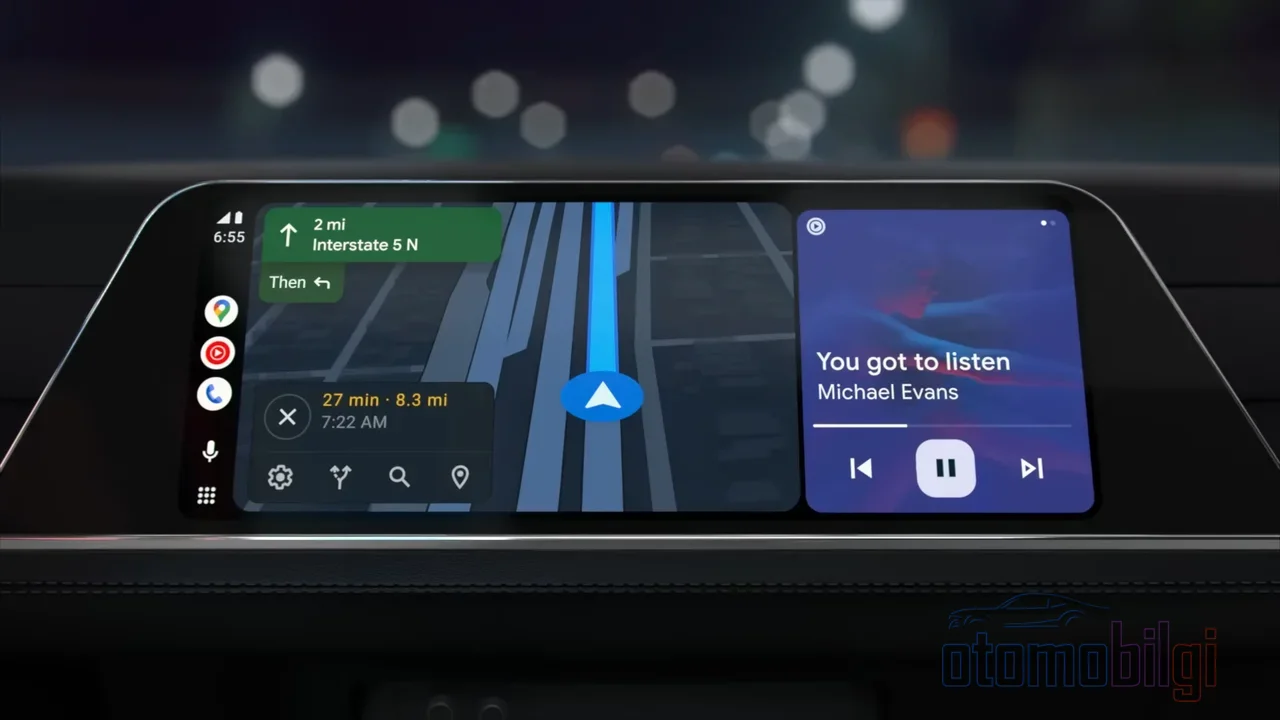
Android Auto is confident on this front: It comes with a multi-window design and offers the driver multiple information areas by default. CarPlay's interface feels more single-app focused - in other words, while Apple offers you the Dashboard as an option, Google has put the layout at the foundation of its design. Even navigation habits are different: CarPlay uses horizontal scrolling, Android Auto vertical. A small detail, but the kind that changes your life once your hand gets used to it.
Android Auto's screen scaling also works smartly: The head unit automatically scales the interface based on the DPI value it reports to the phone. In other words, the phone learns from the screen how dense an image the car's display should render. Users who use split screen on every drive say the system divides the screen intuitively and lets you switch by swiping between apps; CarPlay's split screen mode can also show the content of multiple apps at once with a single touch, quietly changing how you use it.
Which Cars Does Split Screen Actually Work In?
Here's the crux of the matter. The split screen experience depends entirely on the manufacturer: CarPlay can run full screen in one vehicle, layered or sandboxed in another. So the idea that "CarPlay goes full screen" is a myth - the manufacturer doesn't have to hand over the full screen. Apple lists more than 800 CarPlay-compatible vehicle models, but that doesn't mean you'll get the same experience across the entire list. Same phone, same version; two different worlds in two different cars.
An example from history: iOS 13's multi-display support didn't work in every vehicle. While Nissan announced that this multi-display support wasn't present in its vehicles, GM had announced that all of its CarPlay-compatible vehicles would support the iOS 13 update. So even at this very point, the manufacturers' attitudes differed greatly from one another. It's even reported that in left-hand-drive vehicles the split-screen layout flips and the sidebar appears on the right - splitting the screen asymmetrically, you might think, is like splitting the world asymmetrically too.
In Korean manufacturers' vehicles, however, the control is directly in your hands. Let me clarify this with a table:
| Vehicle | Split Screen Setting |
|---|---|
| Ioniq 5 | From Settings > Display > Widgets, the Media widget; Device Projection > CarPlay > Splitscreen selection |
| Telluride | Full screen use by unchecking split screen from Setup > Device Connections > CarPlay |
| Santa Fe | The on/off option is only accessible when CarPlay is not connected |
Do you see that last detail on the Santa Fe? To turn off split screen you first have to disconnect CarPlay - a bit of a shoulder-shrugging moment, but at least there is a path back to full screen.
Why Does Screen Size Determine Everything?
Let me be honest with you: The biggest enemy of split screen is a small display. Screens over 7 inches offer the best split-screen experience. On smaller or lower-resolution displays the layout gets cramped, icons stay tiny, and while trying to press a button with your thumb you touch the wrong app. Moreover, on small or old head units some layout options may not display properly regardless of the iPhone settings - meaning you made the setting on the phone but the car doesn't show it.
CarPlay automatically adjusts the split-screen ratio in most vehicles, and the main app takes up more space. That makes sense: No one wants the map to shrink while looking at it, much like subtitles being squeezed into a quarter of the screen while watching a movie. In some vehicles with wider or higher-resolution screens it is possible to change the ratio, but this depends entirely on the vehicle's software and hardware. So the answer to "can I set the ratio myself?" is "no" for most people, "yes" for some lucky ones. There is a similar limit on the Android Auto side: split-screen mode is only available on wide-screen displays, which significantly narrows its area of use.
Frequently Asked Questions: Why Isn't Split Screen Working?
This is the question I come across most in forums, so let me wrap it up in a Q&A format:
- Why won't split screen open? There are four possible culprits: The car screen may not support this mode, the iPhone may need an iOS update, the car's software may be out of date, or splitscreen may be disabled in the CarPlay settings. Check them one by one; chances are one of them is the culprit.
- Why does the screen split one day and open full-screen the next? Because the behavior is automatic. The system picks the layout it deems most suitable at that moment; some users want a fixed layout, but right now the control isn't in the phone, it's in the system.
- Can I remove an item and put the calendar there? Yes - on the three-slot home screen, widget arrangement is done through the iPhone settings.
- Can I use Google Maps in CarPlay? You can; you can even enable satellite view from the gear icon in the top right.
- Can I see Spotify and the map at the same time? In newer versions, Maps and Music can be shown side by side; some vehicles even open with splitscreen directly.
Let me give you some bonus tips too, because they make a real difference in everyday driving: On iOS 13.1 and above you can share your ETA - buyers using a current iOS get an Apple Maps notification, others get iMessage, an Android user gets a plain SMS. On iOS 17 and above, with SharePlay passengers can add songs to the queue on an Apple Music subscription. And if you want to silence notifications while driving, there's Drive Focus; Siri can read messages out loud and reply on your behalf (the Announce Notifications feature). Safety and comfort in the same package.
CarPlay Ultra: A Different League You Should Know About
When it comes to widgets and screen layout, a distinction needs to be clarified: Standard CarPlay and CarPlay Ultra are not the same thing. On the Ultra side, there are serious differences such as vehicle system control, instrument cluster access, redundancy mechanisms, widgets and UI design. In other words, the Dashboard view we're talking about is the CarPlay experience in millions of standard vehicles; Ultra is a separate category. If readers are confusing Ultra with standard CarPlay, it's worth remembering this distinction.
Split Screen or Full Screen? Final Word
Let's clarify the answer, because this is the main question of this page: In CarPlay, split screen is opened with an iPhone running iOS 13 or later, via the widget icon on the car screen or the Dashboard option in the apps list; it can show maps, music and messaging on the same screen. Android Auto makes multiple windows its default design, but only offers it on wide-screen displays. The question isn't which one is better, but which one suits your habits - that's what really matters.
And the most critical truth is this: The quality of this experience comes not from the phone, but from the car's screen and the manufacturer's software. When a wide screen above 7 inches, up-to-date vehicle software and a properly configured iPhone come together, the Dashboard is truly great; on a small old screen, however, it can be cramped and frustrating. Test your own car, adjust its settings from your phone, and if it doesn't work, run through our four-point checklist. So tell me, which system are you obsessed with - one big map that covers everything, or a map and songs sitting side by side?
Resources
- Customize widgets in CarPlay
- iOS - CarPlay
- How To Customize Apple CarPlay Split Screen - CarTablet
- Apple CarPlay's new dual-screen function won't work in every car
- Android Auto vs Apple CarPlay: What features set them apart
- Android Auto Split Screen vs. CarPlay Dashboard
- CarPlay's split-screen mode quietly changed how I use my car
- CarPlay: show maps and music info side-by-side
- Display both the map and music in Apple CarPlay?
- What is the difference between Apple CarPlay and CarPlay Ultra