What to Do When Your Car Screen Freezes or Stops Responding?
Share This Page
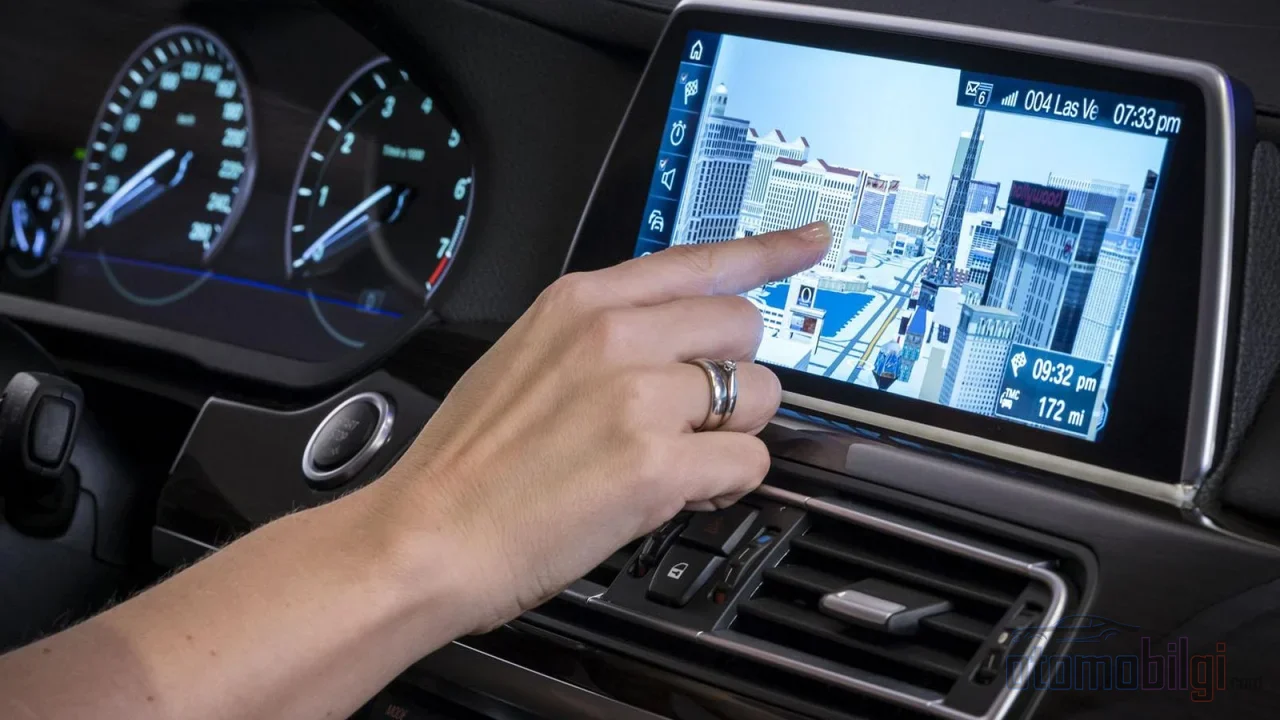
When your vehicle's screen freezes, the first thing to do is not to panic, but to find the source of the problem: Most freezes are resolved within minutes with a simple soft reset that restarts the multimedia unit. The order of operations is to first determine whether the problem comes from the phone or the vehicle's system, and then to safely restart the system using the correct method.
Highlights
- The most common causes of screen freezes: software bugs, outdated software, corrupted updates, and USB device conflicts.
- In most brands, the power button for a soft reset is held for 10-20 seconds personal settings are not deleted.
- Extreme heat and cold can temporarily slow down the screen; the problem usually resolves itself once the vehicle warms up or cools down.
- A significant portion of CarPlay and Android Auto errors stems not from the vehicle system, but from the phone-vehicle connection.
- A factory reset should be the last resort; some personal data may remain even after the reset.
Why Does the Screen Freeze? Common Culprits
There is no single reason behind a multimedia screen locking up; there are a few classic suspects. The most frequently encountered is software bugs: the screen responds slowly to touches, suddenly restarts itself, or does not respond at all. In most similar cases, turning the system off and on again, meaning a simple reboot, does the job.
The second classic culprit is outdated software. When the system's software falls behind, touches are delayed, maps and apps fail to load, and the screen locks up from time to time. The third is more annoying: corrupted updates. If the internet connection is weak during the update, the update file is damaged, or the process is interrupted halfway through by a power loss, the screen may freeze after the update, restart repeatedly, or the apps may not open at all.
The rest of the list goes like this: electrical problems (a blown fuse, loose cables behind the glove box, power fluctuations), hardware connection issues (worn cables, a weak touch layer), and USB device conflicts. Yes, even a flash drive plugged into the vehicle can lock up the system; when the phone and the drive together put excessive load on the system, the unit gives in.
Does temperature really have an effect?
It does, but usually temporarily. On a cold morning, the screen may open slowly and touches may feel sluggish. In extreme heat, the system may switch to safe mode to protect itself. Sudden weather changes really put the unit through its paces. The good news: temperature-related freezes usually resolve themselves once the vehicle warms up or the interior cools down. So if the screen of a car parked in the July sun is not working, there is no need to jump to the worst-case scenario right away.
Is the Problem Coming from the Phone or the Vehicle's System?
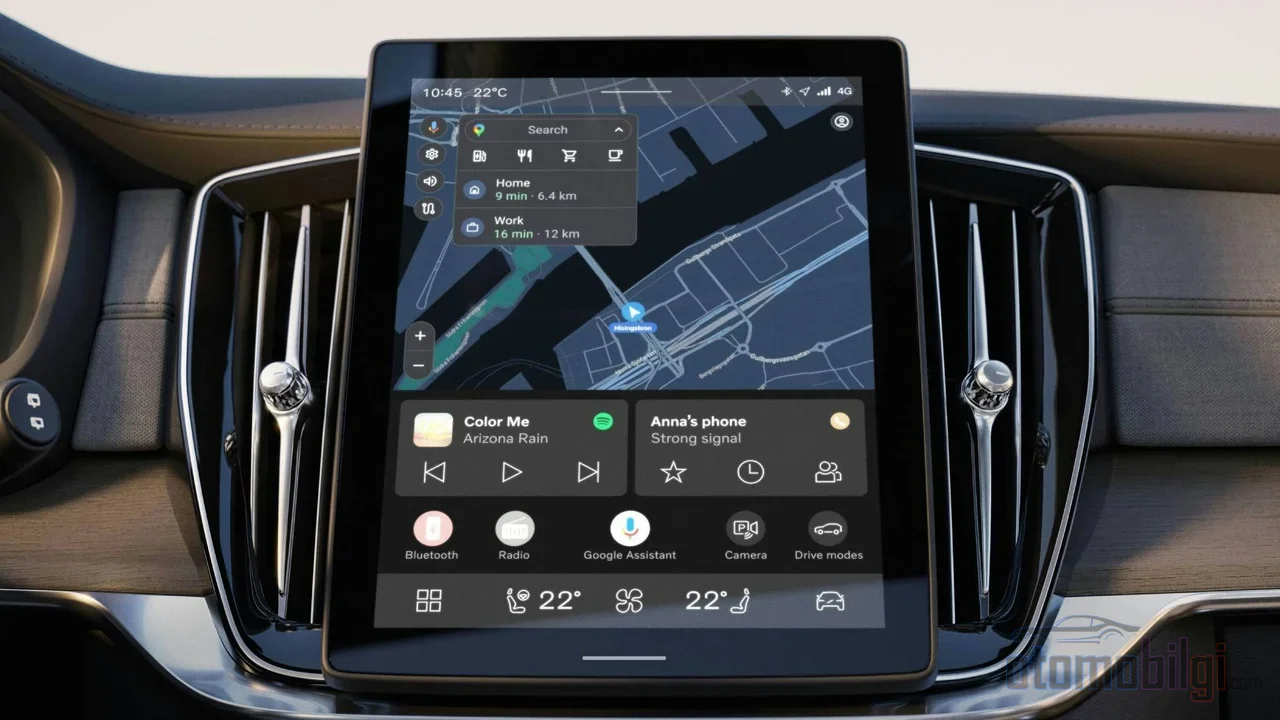
When dealing with lockups while using CarPlay or Android Auto, the most critical step is to answer this question: what is actually frozen? Because a significant portion of phone-related errors stems not from the vehicle's system, but from the connection between the phone and the vehicle. That is why the first checks should always be done on the phone side.
For Android Auto the order is roughly as follows: first check the USB cable and ports, unplug the phone from USB and plug it back in. Then update the Android Auto app, clear its cache, and review the permissions. Forgetting the car in the Bluetooth settings and re-pairing is also a classic but effective move. Restarting the phone and the car - the magic you need is often just two button presses away.
The situation with CarPlay is similar. Unplug the iPhone from the car, wait about 30 seconds and reconnect it as the first step; turning Bluetooth and Wi-Fi off and on can also help with wireless CarPlay. For a more permanent fix, you may need to delete the car from Settings → General in the iPhone's CarPlay settings and pair from scratch. In cases where a black screen appears but audio continues, the order is clear: first restart the head unit, i.e. the car's multimedia unit, replace the cable if necessary, and reset CarPlay last.
There is also one detail to watch out for: after iOS updates, black screen issues in CarPlay are common; there have even been cases where CarPlay stopped working after an update on third-party units that had run flawlessly for two years. So the problem is not always the finger you pointed, sometimes it is in the phone's operating system.
How Do I Safely Restart a Frozen Screen?
First diagnose what is frozen, because the situation is not the same in every case. Audio playing while touch doesn't work is proof that the system is still running in the background. Only navigation locking up while other functions work points to a single app or interface problem. The screen going completely dark is a different scenario and should be handled separately from a simple touch lockup.
If the diagnosis is complete, it's time to restart. The golden rule here is: every brand has a different combination, so the safest bet is to check your own vehicle's owner's manual. But common examples will give you an idea:
| Brand / Model | Method | Note |
|---|---|---|
| Ford F-150 | Power button + seek right button, at the same time 10 seconds | Bluetooth and radio settings are not deleted, just a reboot |
| Chevrolet (Google built-in) | END CALL button on the steering wheel while in PARK, ~20 seconds | The center screen turns off and restarts |
| Chevrolet Bolt | Home + Fast Forward buttons for ~10 seconds | Multimedia is reset |
| Volkswagen | Multimedia power button 10+ seconds | If that doesn't work, turn the car off and on |
| Toyota C-HR | Turn off the car, lock it, and 5 minutes stay away | The unit goes into sleep mode and loses power |
| Honda Insight | Volume/power button 3 seconds, reboot on the confirmation menu | Applied while the car is on |
If none of these combinations work, try the simplest methods: unplug the phone from USB and plug it back in, or turn the car off and on. It sounds very simple, I know - but a significant portion of stubborn lockups end with these two moves.
What to Do If the Screen Freezes After an OTA Update?
OTA, i.e. wireless software updates, are a great thing - until they get stuck in the middle of the screen. If an update is interrupted or throws an error, the multimedia system can sometimes end up in a strange state. The first step is always the same: a soft reset, i.e. restarting the multimedia unit. This usually clears up a frozen and sluggish screen.
Even in cases where the system becomes completely locked up or frozen after an update, the brands' emergency recovery combinations can work. For example, on some Chevrolet models, with the vehicle in PARK and running, the END CALL button on the steering wheel is held for about 30 seconds , the screen shuts off by itself and then the vehicle is turned off. One of the classic mistakes that leads to a stuck update is another process kicking in during the operation; in this case, some drivers disconnect the negative battery terminal for a short time.
But stop right there - read the next section before you rush to the battery. And remember this: for repeated lockups after a corrupted update, an authorized service center can reinstall the update; you don't have to try to solve this at home.
When Is a Factory Reset Necessary, and What Are Its Risks?
If a soft reset wasn't enough and the problem stubbornly persists, the next step is a factory reset. This option is usually found in the settings, account information or profile menus on the multimedia screen. Even on the latest software, if there is a known fault, a full system reset may be the only solution.
You should also know the risks: a factory reset erases radio presets, pairings and personalizations. More importantly, from a safety standpoint it's a double-edged sword. If you plan to sell your vehicle, a reset is essential to erase your personal data; but be careful, because even after a factory reset some data may remain in the vehicle. In other words, a reset neither solves everything nor erases everything.
The smart order here is: first a soft reset, then a factory reset if necessary, and disconnecting the battery only as a last resort. Disconnecting the battery terminal is some drivers' favorite move, but there's a harsh truth: when the battery is disconnected, radio presets, the clock and other personalized settings can be reset, and some head unit settings may be lost after servicing. A hard reset should be the last resort when soft resets have been exhausted. What's more, a soft reset has another advantage: in most vehicles it can be done even while driving.
If the Problem Keeps Recurring, When Should You Go to the Service Center?
A one-time freeze is a normal part of life - like any phone, any multimedia system can occasionally get stuck. But some symptoms call for a professional eye. If you have any of the following, stop fiddling with it at home:
- The screen freezes at every startup and this keeps recurring,
- A dark screen that won't come back no matter what you try,
- The phone connection keeps triggering the same problem,
- Multiple functions have failed at the same time,
- After an update, the system throws errors and keeps locking up again and again.
In these tables, the problem may lie below the software surface: in the wiring harness, the power supply, or the hardware. Since low system voltage and power interruptions can also contribute to screen and responsiveness issues, the electrical side may need to be checked by a technician.
A Quick Roadmap Summarizing the Freeze Problem
Keep a clear order in your head: first determine the scope of the problem (screen, touch, or the whole system), then check the phone side (cable, update, re-pairing), and then do a soft reset. If those aren't enough, do a factory reset; if that isn't enough either, go to service. Save disconnecting the battery for last, and rely on your own vehicle's manual at every step - because every brand's combination is different. The next time the screen decides to freeze, there's no need to panic; two buttons, ten seconds, and most likely you're back on the road.
Sources
- Quick Fixes for Your Car's Infotainment System
- 7 Reasons Your Nissan's Touchscreen May be Frozen
- How to Troubleshoot Your Chevy's Frozen Touchscreen
- How to Resolve Android Auto Problems | Chevrolet Support
- Android Auto Not Connecting or Not Working? Here Are 5 Fixes
- Selling Your Car? Clear Your Personal Data First - FTC
- How to Clear Your Personal Data From a Car
- EV OTA Update Failed or Stuck: What to Do
- How to Reset a Frozen Infotainment Screen on a Toyota C-HR
- CarPlay Black Screen? 6 Fixes
- Maintaining Head Unit Settings When Disconnecting the Battery