Customizing Your Car's Displays to Your Liking: What Can Be Changed
Share This Page
In modern vehicles you can truly customize your digital instrument cluster and multimedia screen to your liking: theme selection, gauge layout, home screen widgets, quick access shortcuts, and settings saved with driver profiles are now standard options in most new vehicles. How much you can customize varies from brand to brand and from hardware package to hardware package; moreover, these options can expand over time with software updates. Here are the ways to shape your screens to your own taste.
Highlights
- Some manufacturers add theme features later via software updates; some themes can also be paid
- Example update: New cluster themes arrived for models such as the SANTA FE, TUCSON and IONIQ 5
- VW's Digital Cockpit Pro offers a larger 10.25-inch screen and more display modes
- CarPlay has had widgets for years; Android Auto home screen widgets have come only recently
- Driver profiles can remember your settings, including seat position
What can be changed on a digital instrument cluster?
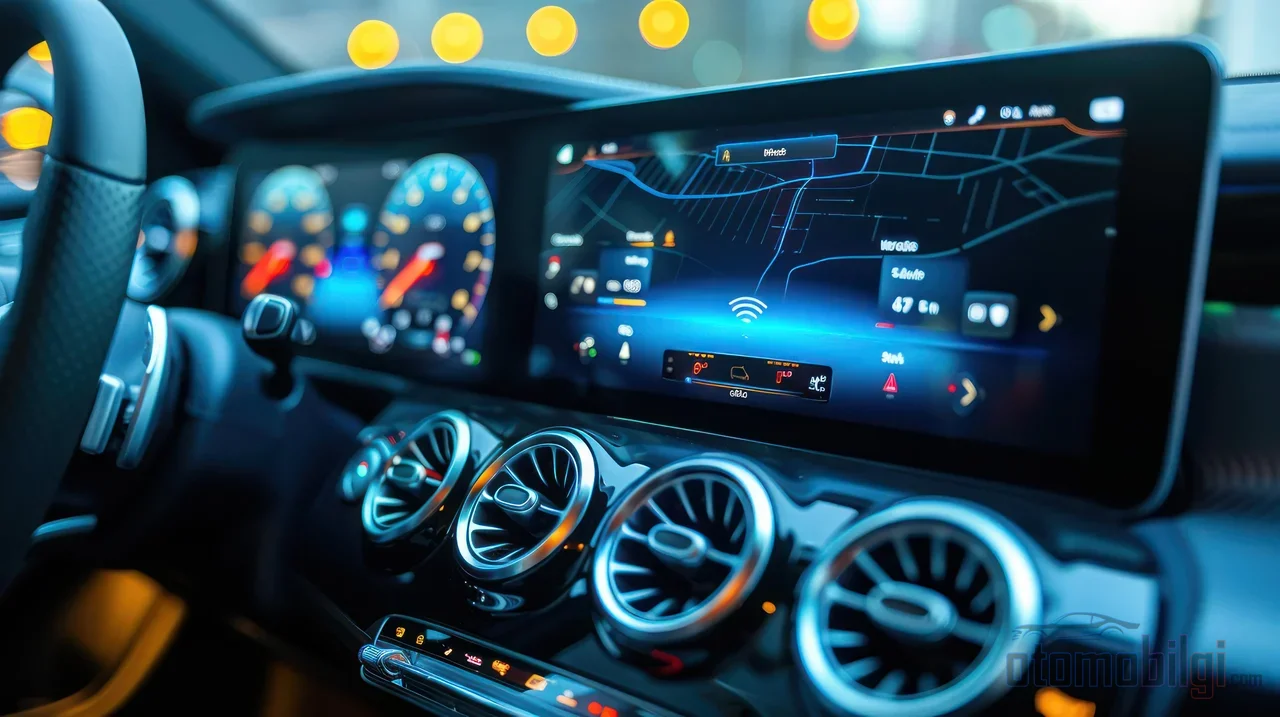
Digital gauges have replaced the analog panels we've long been used to, and the good news is this: it doesn't mean everything can be changed just because it's a screen, but what you can change is quite extensive. The most basic option is the visual theme - color schemes and backgrounds. There's also data layout: you can switch between the classic view with two large dials and a minimal single-screen view showing everything.
The real fun is in the data displayed. Besides speed and RPM, you can add information like tire pressure, oil temperature, fuel efficiency, and even towing capacity to the screen. On some models you can even choose the font. So the real question is this: when you sit in front of the cockpit, where do your eyes go? You set up your layout according to your answer.
And the practical side of this is a bonus. A well-designed cluster lets you reach the most important information at a single glance; whereas a cluttered layout does exactly the opposite. In some Jeep models, the entire appearance of the gauges changes with a few button presses - the job gets done even without getting lost in menus.
The menu path varies from brand to brand
Here things get interesting, because every brand has a different way of doing the same thing. For example, in the 2026 Hyundai Sonata, you tap the settings icon on the touchscreen and go through the cluster and head-up display menu. In 2026 Kia models, you change the theme and layout through the settings, screen layout, and display menus. So if you set up your habits based on your own car at home, it's perfectly normal to feel a bit lost in your friend's car.
A similar situation applies on the Volkswagen side. The brand's Digital Cockpit system offers customizable items such as navigation, safety information, and a high-resolution screen. The hardware level is the deciding factor here: Digital Cockpit Pro comes with a larger 10.25-inch screen and more display modes. Audi also has a distinction between Virtual Cockpit and Virtual Cockpit Plus; which version you have directly affects your customization and upgrade options.
| System | Standout feature |
|---|---|
| Hyundai ccNC + 12.3-inch cluster | Theme selection and digital speedometer delivered via software update |
| VW Digital Cockpit Pro | 10.25-inch screen with numerous display modes |
| Kia 2026 panorama screen | Theme and layout changes from the setup menu |
| Audi Virtual Cockpit Plus | Advanced customization and upgrade options |
| Some Jeep models | Changing the entire gauge view with a few buttons |
Even within the same brand, there can be design differences between models; in Volkswagen, different panels were designed with different accent colors. So don't assume "they all use the same panel" - checking your own vehicle's manual is the surest way.
Multimedia screen widgets: customize your home screen
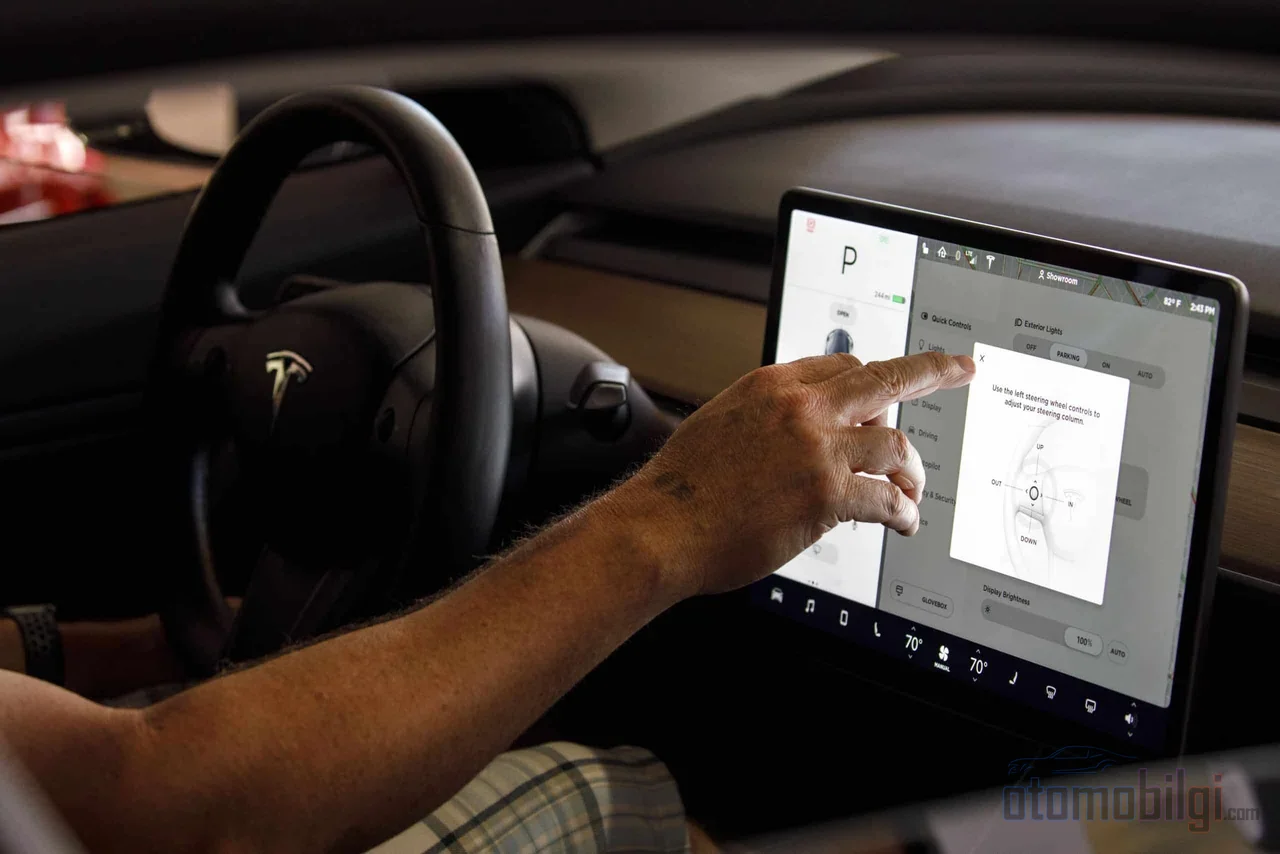
You can arrange your phone's home screen, so why not your car's screen? Widgets do exactly that: you place items like weather, music player or navigation info on the home screen and see them at a glance. On Volkswagen's interactive screen, you can add, delete and move widgets - smartphone logic carried into the car.
The Apple CarPlay side
Widgets have been part of CarPlay for quite a while. On your iPhone, go to Settings, General, CarPlay, then select your vehicle and enter the widgets menu; from there you set which widgets appear and their order. It's also possible to rearrange app icons, manage widgets and set up layout settings on the CarPlay Dashboard; current iOS versions continue to expand these options.
The Android Auto side
The story with Android Auto is a bit more recent. Home screen widgets were a long-awaited feature; Apple was ahead of the game years ago, because it had already added widgets to CarPlay. At Google I/O 2026, it was announced that Material 3 Expressive design, widgets, video apps and Gemini-based smart features are coming to Android Auto and vehicles with Google built-in. There is also talk of a major visual refresh for Google Maps, including 3D building models and improved lane guidance. So home screen customization is really getting nicer for Android users.
Driver profiles: let your settings remember you
If you use the car with your family, this section is for you. Thanks to driver profiles, your gauge layout, theme preference, seat position and similar settings are saved under your name; when the person getting into the car switches to their profile, everything returns to their preference. For example, in BMW, seat positions are saved to the car and profiles A and B remember which driver used which position. Think of it like your phone being handed to another user: the wallpaper changes, the icons line up, and you return to your own world.
But there's another side to the coin: this pairing isn't intuitive in every brand. Some Mercedes EQC owners report having trouble figuring out how to link memory seat settings to their driving profile. Some users also report failing to save settings to their profile, with the settings reverting to their old values. So the profile system is a powerful feature, but you need to sit down once and set it up properly; otherwise you'll find yourself readjusting everything every time you get in. Surely no one wants to adjust the seat manually every morning, right?
OTA updates: your car's screens can change over time
Here's the biggest difference that sets today's cars apart from older ones: OTA, i.e. over-the-air software updates. Your car can download and install its software wirelessly; no physical connection or service visit required. The result for customization is significant: new themes, new layouts, and new features can arrive in your car after the fact. The screens you have on the day of purchase don't have to be the same as the screens three years later.
Let's give a nice example. With an update released in April 2026, Hyundai added a new screen theme function; in the settings path it appears on screen as the Display Themes menu. The same update also improved the cluster themes: the graphics of the Classic theme were improved and a new Modern theme was added. In addition, a digital speedometer was also introduced on the instrument cluster. These features are valid on vehicles with the ccNC infotainment system and a 12.3-inch instrument cluster - the SANTA FE, some TUCSON models, and the IONIQ 5 - and having the latest infotainment software installed is essential for smooth operation. After installation, the vehicle may also need to be restarted twice for the menu to appear; so do those two restarts before declaring "it didn't work".
The point also emphasized by Consumer Reports is this: OTA updates have become widespread in new cars, and experts are debating questions such as whether they can be done safely while driving and how long they take. There's also a practical warning: updates can affect your existing settings. On Porsche Taycan forums, there are users questioning whether an OTA update changed their vehicle settings. So it's worth taking a look at your theme and widget layout after a major update.
The paid theme debate and the safety side
Now let's take a look at the bill as well. Hyundai making its cluster themes purchasable via the Bluelink Store, i.e. the myHyundai app, raises a candid question: is beautifying your car's screen a free feature, or a source of extra revenue? On one hand the concept of customization says "your car is yours, set it up as you like," while on the other some themes carry a price tag. In the automotive world, this debate seems set to grow even larger along with the software-defined vehicle concept.
The safety side is just as important as the design. A well-tuned panel makes it easy to check critical information at a glance; some digital panels can also contribute with real-time speed alerts. But the other side of the coin: a cluttered, overly colorful and information-loaded layout can take your attention away from the road. My suggestion is simple - put the two pieces of information you look at most in the most visible spot, and simplify the rest. Glitches and distraction increase risk at high speed; don't lose your safety while trying to make your screen look stylish.
Practical steps for setting up your own screen
If we were to put all this into a practical list, you could start like this:
- Keep your vehicle's software up to date - new customization features usually come with updates.
- Find the theme and layout menu in your instrument cluster; it's usually hidden under settings, in headings like cluster or screen layout.
- Choose and arrange the widgets you find most useful on the main screen; on CarPlay, this setting is done from the CarPlay menu on your phone.
- Organize your quick-access shortcuts according to the functions you use most - navigation and music are most drivers' first choices.
- If the vehicle is used by more than one person, set up driver profiles and link seat and screen settings to the profile.
- Check your settings after every major update; some updates can change your existing layout.
Remember, finding the customization options on some models is not easy at all; we see even some owners of 2026 models struggling to find the settings in forums. Opening the vehicle's manual for a few settings or exploring the screen menus while calmly parked is the most natural way. After that, the cockpit is entirely yours: the theme is yours, the layout is yours, the shortcuts are yours. And your driving enjoyment multiplies accordingly.
Sources
- New Display Theme Settings Function and Cluster Function Update – Hyundai
- How do you customize the digital instrument cluster on a 2026 Kia – Kia of Lincoln
- How to Personalize the Digital Instrument Cluster in 2026 Hyundai Sonata – Stivers Hyundai
- Custom Instrument Cluster & Dashboard Guide – Dashboard Instrument Cluster
- Kia Display Themes: Customize Your Drive – Vandevere Kia
- What Is The Volkswagen 10.25-inch Digital Cockpit Pro – Jim Ellis VW
- Understanding Volkswagen's Digital Cockpit – Tom Bush VW
- How to Customize, Upgrade, and Use Virtual Cockpit Plus – Audi Great Neck
- QOTD: How Do You Setup Your Gauges? – The Truth About Cars
- CarPlay Widgets: How to Set Up and Customize – Car Tech Studio
- Customize CarPlay Dashboard: A 2026 Setup Guide – Merge Screens
- Android Auto is finally getting home screen widgets – XDA Developers
- Android Auto is getting widgets, video apps, Material 3 Expressive at Google I/O 2026 – Android Authority
- What is OTA? A Comprehensive Guide – Sonatus
- How OTA updates enhance software-defined vehicles – Mender
- OTA Car Software Updates: Are They Safe and How Do They Work? – Consumer Reports
- Ford OTA Software Update Guide – Moon Township Ford
- Did an OTA software update change my car settings? – TaycanForum
- Driver Profile and Memory Seats? – Reddit r/BMW
- How to attach memory seat settings to a driving profile? – Reddit r/mercedes_benz
- Customizing Your Infotainment System – Volkswagen